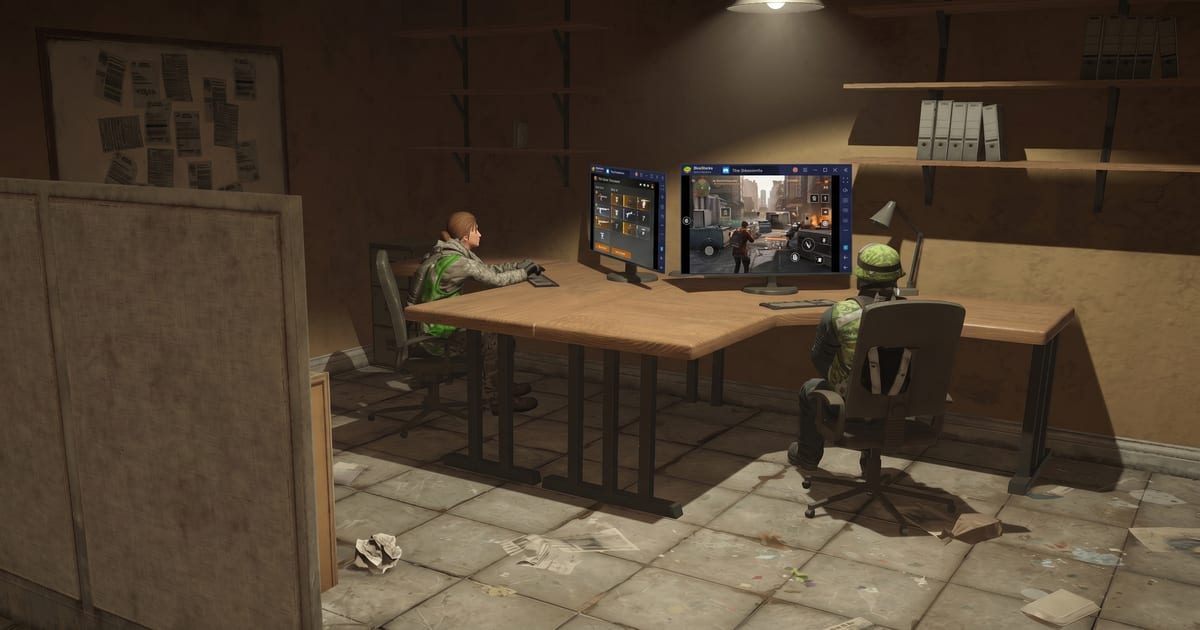
Ubisoft launched the official PC version of The Division Resurgence on April 28, 2026 through Ubisoft Connect, and for most Windows players this is now the path of least resistance. Mac users are a different story. The Ubisoft Connect PC client is Windows-only. So is the recommended hardware list.
If you are on a Mac, a low-end Windows box that does not meet the official PC specs, or you just prefer running it through an Android emulator for the keyboard-and-mouse setup, this guide compares the three emulators that actually run the game and tells you which one wins on FPS, stability, and Mac support.
Bottom line up front: MuMu Player wins for Windows performance. BlueStacks is the only working option on Mac and even there it is rough. LDPlayer is the safety backup. The native PC client beats all three if you have the hardware.
Quick Answer
- Best Windows emulator overall: MuMu Player for 50 to 60 FPS with four cores and 4 GB RAM. (reference)
- Best Mac option: BlueStacks is the only Mac-supported emulator running the game today, but community testing on r/thedivisionresurgence calls it “not playable, with poor graphics and very low FPS.”
- Most stable backup: LDPlayer 9 with the Adreno TM 740 device profile, six cores, 8 GB RAM.
- Ubisoft’s stance: Officially allowed per the Ubisoft Help Center FAQ, but they will not provide bug support and will not guarantee performance.
- Native PC client is free on Ubisoft Connect for Windows and beats every emulator if your rig meets the minimum specs.
Is the Official PC Client Better Than Emulators?
Short answer: yes, for Windows users. The native client targets standard PC frame rates and resolutions, gives you proper keyboard and mouse support out of the box, and Ubisoft’s support team will actually help when something breaks.
Here are the official PC specs so you know whether the native client is even an option:
| Target | CPU | GPU | RAM |
|---|---|---|---|
| 1080p Low, 30 FPS | Intel i5-8400 / AMD Ryzen 5 3400G | Intel UHD 630 / AMD Vega 11 (integrated) | 8 GB |
| 1080p High, 60 FPS | Intel i5-8400 / AMD Ryzen 5 5500 | GTX 1650 / RX 5500 / Intel ARC A380 | 8 GB |
| 2K High, 60 FPS | Intel i5-10400 / AMD Ryzen 5 5500 | GTX 1660 / RX 5500 XT / Intel ARC A580 | 8 GB |
| 4K Very High, 60 FPS | Intel i7-8700K / AMD Ryzen 5 3600 | GTX 1660 Ti / RX 5600 XT / Intel ARC A750 | 8 GB |
The game install is around 17 GB with 30 GB recommended free space. Cross-progression with mobile is full, and cross-play is supported on the same regional server.
Mac users: Ubisoft has not announced a native Mac client, and the official Ubisoft AMA confirmed there are no current plans for one. The game’s iOS App Store listing also does not opt in to run on M-series Macs through Apple’s iOS-on-Mac compatibility layer, which would have been the cleanest solution. Until that changes, your only options on Mac are emulators or a controller-tethered iPad.
Is Emulator Use Allowed?
Yes. The official Ubisoft Mobile Help Center FAQ states verbatim:
You are allowed to play The Division Resurgence using an emulator. Ensure you are downloading the game from an official source (Google Play Store on Android for example) for an optimal gaming experience and avoid downloading malicious content. Moreover, make sure to connect to your Ubisoft Connect account to keep your progression across all platforms. Please note that we cannot guarantee your playing experience on emulator. If you encounter issues or bugs while playing on emulator our teams will not be able to provide assistance.
So Ubisoft is not chasing emulator users with pitchforks. They just will not help you when your game crashes during a Dark Zone extraction and your blood pressure crests 180. Fair enough. That is what guides like this one are for.
The translation: download the game through the Google Play Store inside your emulator, link your Ubisoft Connect account, and you keep all your progression across mobile, PC, and emulator. No sideloaded APKs from sketchy sites.
Emulator Comparison Table
This is built from community testing, the Skycoach setup documentation, the MuMu official PC settings guide, and on-video benchmarks from multiple creators. All three emulators are free.
| Feature | MuMu Player | BlueStacks 5 Pie 64-bit | LDPlayer 9 |
|---|---|---|---|
| Best reported FPS (Windows) | 50 to 60 FPS sustained | Variable, often below 60, frequent crashes per community testing | 60 FPS with High FPS Mode + 120 FPS V-Sync |
| Recommended CPU allocation | 4 cores | Max your PC supports | 6 cores |
| Recommended RAM allocation | 4 GB (per MuMu’s own optimal preset) | Max your PC supports | 6 to 8 GB minimum |
| Renderer | Vulkan | Vulkan | Vulkan (DirectX causes flying textures) |
| Mac support | Windows only | Yes (Intel and Apple Silicon) | Windows only |
| Controller prompts | Correct PS pad prompts | Sometimes wrong PS pad prompts | Standard |
| Startup time | Fast | 6 to 13 seconds per BlueStacks own benchmarks | Slower (around 50 seconds in same test) |
| Stability | Best of the three | Crash-prone on this title | Stable with right device profile |
| In-game graphics ceiling | Very High at 30 FPS, or Medium at 60 FPS | Very High at 30 FPS, or Medium at 60 FPS | Same ceiling, all emulators hit this wall |
The “Very High at 30 vs Medium at 60” tradeoff is enforced by the game itself, not by the emulators. The in-game framerate setting locks the graphics ceiling. Going Standard (30) unlocks Very High graphics and High resolution. Going Medium (45) or High (60) limits you to Medium graphics and Standard resolution. There is no current way to combine highest graphics and 60 FPS on stock builds.
MuMu Player: Best Windows Performance
The strongest pick for Windows users who want emulator life over the native client, based on the most recent community testing on MuMu’s own settings guide and a creator deep-dive that benchmarked all three.
Why Pick MuMu
- Designed for low overhead and high mobile FPS
- Correct controller prompts for PS pads
- 50 FPS sustained in mid-density combat on standard Windows builds, according to creator testing
- Available in the MuMu Store with direct Division Resurgence install path
- Stable enough to skip the modded-APK route if you accept the 30 FPS Very High cap
Recommended MuMu Settings
Engine / device settings:
- Renderer: Vulkan
- CPU cores: 4 (or half your physical core count if you have more than 8)
- RAM: 4 GB (MuMu’s own optimal preset) or 8 GB if you have headroom
- GPU memory usage: Optimal
- Discrete graphics: Enabled
- Resolution: 1920x1080 (or your monitor’s native res)
- DPI: 480 for sharper UI
- Device profile: Samsung Galaxy S25 Ultra
- GPU model: Adreno TM 740 (highest available)
In-game graphics (for 60 FPS path):
- Graphics: Medium
- Resolution: Standard
- Framerate: High (60)
- Shadow: High
- VFX: Low
- Bloom: Off
- Anti-Aliasing: On
- Volumetric Lighting: On
- Dynamic Resolution: Off
In-game graphics (for max-fidelity 30 FPS path):
- Graphics: Very High
- Resolution: High
- Framerate: Standard (30)
- Shadow: High
- VFX: Low
- Bloom: Off
- Anti-Aliasing: On
BlueStacks 5: The Mac-Only Lifeline
If you are on a Mac, this is the only working option as of late May 2026, and the community is pretty blunt about it:
At present only BlueStacks works, but it’s not playable, with poor graphics and very low FPS.
Note the player tried Parallels and it also did not work. The reason: Parallels runs Windows on top of macOS, and then you would be running an Android emulator on top of that Windows, on top of macOS, on top of Apple Silicon, which is the digital equivalent of taping four energy drinks together and calling it a roadtrip cooler. The architecture conversion overhead crushes performance.
BlueStacks Installation (Windows or Mac)
- Download BlueStacks 5 Pie 64-bit from the official BlueStacks site. The Pie 64-bit build is the one that works. Other builds cause stability problems with this title.
- Install and launch BlueStacks, then click Home in the top-left.
- Open System Apps, launch Google Play Store, sign in with your Ubisoft-linked Google account.
- Search The Division Resurgence and install.
- Inside BlueStacks settings before launch:
- Renderer: Vulkan
- Performance: maximum CPU and RAM your machine supports
- High Frame Rate: enabled, targeting 120 FPS
- Display: Landscape, 1920x1080, 240 DPI
- Phone profile: latest preset available
Known BlueStacks Issues
- Screen rotation on Mac. The fix is the sidebar lock-orientation button. Set it to Landscape and it stays put.
- Crashes during the Dark Zone. Frequent enough that the community treats them as expected. Less RAM-starved setups crash more often. Close every other app before launching.
- Wrong controller prompts. Some PlayStation controllers display the wrong button icons. MuMu does this better.
Mac-Specific Caveats
- Apple Silicon (M1, M2, M3, M4) Macs run BlueStacks through a Rosetta-style translation layer. Expect the worst FPS of any platform.
- Intel Macs fare somewhat better but the population running them is shrinking fast.
- PlayCover and iPad-app-on-Mac are mentioned in community threads but require decrypted IPA files from non-official sources. We do not recommend this path because it conflicts with Ubisoft’s guidance to download only from official stores.
- CrossOver and Parallels do not solve the problem. There is no native Windows or Mac binary to run inside them, and stacking Android emulation on top of virtualization is unstable.
The Honest Mac Recommendation
If you have an iPad with an A12 Bionic or newer chip and a Bluetooth controller, that combo will outperform any Mac emulator setup. The App Store device list shows full compatibility from iPhone XS, iPhone XR, iPad Air M2, and forward. Connecting the iPad to a monitor via USB-C HDMI gives you a usable big-screen experience without fighting an emulator.
LDPlayer 9: The Backup
LDPlayer is the third viable option per the GAMES.GG comparison guide. It is solid, well-documented, but not better than MuMu on this specific game. Use it if MuMu crashes more than you can stomach.
LDPlayer Settings
- CPU and RAM: Settings > Advanced. Up to 6 cores, at least 6 GB RAM
- Resolution: Settings > Display. 1280x720 baseline (you can go higher if your GPU is strong)
- FPS: High FPS Mode enabled, 120 FPS target, V-Sync on
- Renderer: Vulkan
- Device profile: Samsung Galaxy S25 Ultra, Adreno TM 740 GPU
LDPlayer’s strongest case is on systems with mid-tier GPUs. The 1280x720 baseline keeps the GPU happy and the V-Sync option reduces tearing if you have an older display.
Universal Emulator Tips for Division Resurgence
These apply regardless of which emulator you pick:
- Always use Vulkan. DirectX causes flying textures and character models that refuse to render. Confirmed across multiple creator setup videos.
- Half your physical CPU cores. If you have 8 physical cores, give the emulator 4. Going higher actually causes more crashes because the emulator competes with the host OS for scheduler time.
- Pick the newest available device profile in your emulator. Samsung Galaxy S25 Ultra is the current sweet spot. Older profiles trigger an in-game warning and lock you out of higher graphics tiers.
- Disable Dynamic Resolution in-game. It actively drops your resolution mid-fight to maintain FPS, which looks worse than just running a fixed lower resolution.
- Lossless Scaling on Steam can double your perceived FPS on a constrained setup. One creator demonstrated 50 FPS doubled to 100 using this trick. Not free, but legitimate.
- Close Discord, OBS, browser tabs, and screen recorders before launching. The game competes with all of them for RAM and GPU time.
- Stick to keyboard-mouse-or-controller, do not switch mid-session. Switching can confuse the in-game UI overlays.
Common Failure Modes
If you have already tried an emulator and it crashed, here is what usually fixes it:
- “Game crashes on launch.” Check that your emulator is the 64-bit build. BlueStacks 5 Pie 64-bit specifically. 32-bit builds do not work.
- “Stuck on Connecting screen.” Switch from Wi-Fi to Ethernet or vice versa. Sometimes it is your router holding the handshake, not the emulator.
- “Flying textures or untextured characters.” You are on DirectX. Switch to Vulkan in the emulator’s device settings.
- “60 FPS option is grayed out.” Your emulated phone profile is too old. Switch to Galaxy S25 Ultra or the latest available flagship.
- “Game runs but controller button prompts are wrong.” Either you are on BlueStacks with a PS pad (switch to MuMu) or you need to manually rebind the prompts in the in-game controller settings.
- “Random crashes during Dark Zone extractions.” This is a known game-level instability not specific to emulators. The Phase 2 patch on May 11, 2026 improved this. Make sure you are on the latest version.
So What Should You Actually Use?
- Windows PC that meets official specs: Use the native Ubisoft Connect PC client. No emulator gets you better performance.
- Windows PC below official specs, or just prefer emulators: MuMu Player with the settings above.
- Mac (Apple Silicon or Intel): BlueStacks 5 is your only working option. Expect compromises. Consider an iPad with a controller as a parallel option.
- Steam Deck or ROG Ally: Confirmed working with the native PC client since Phase 2 launch.
Related Reading:
- Division Resurgence Device Compatibility
- Division Resurgence Error Codes
- Division Resurgence Codes (May 2026)
- Division Resurgence Safe Codes Master List
- Patch 1.2.1 Notes
- Season 1-3 Roadmap
Sources:
- Ubisoft: Play Resurgence on PC - All You Need to Know
- Ubisoft Help Center: Can I play this on an emulator?
- Ubisoft: Phase 2 patch notes (May 11, 2026)
- DSOGaming: PC system requirements
- App Store: The Division Resurgence device compatibility
- Reddit: MacOS Emulating community testing
- Reddit: Can this game be enabled for M-series Macs (Ubisoft AMA reference)
- Reddit: PC client or Emulator support (Ubisoft livestream quote)
- YouTube: Best Division Resurgence Settings for PC (MuMu Player)
- YouTube: Play Division Resurgence on Emulator - 60 FPS Guide
- YouTube: How to Download Division Resurgence on PC via MuMu
- GAMES.GG: Full Emulator Setup Guide
- Skycoach: How to Play Division Resurgence on PC
- MuMu Player: Official Division Resurgence settings guide
- BlueStacks: BlueStacks 5 vs LDPlayer 9 Performance Report 2026
- InvenGlobal: Division Resurgence Expands to PC
The real emulator breakdown for Resurgence
BlueStacks vs MuMu vs LDPlayer for Division Resurgence. Benchmarks, settings, and the honest Mac verdict.
Frequently Asked Questions
Does Division Resurgence have a native PC version?
Yes. Ubisoft released the native PC version on April 28, 2026 via Ubisoft Connect. It is Windows-only and free to play with full cross-progression to mobile.
Does Division Resurgence work on Mac?
There is no native Mac client. The only working option is the BlueStacks Android emulator, and community testing rates it as not playable with very low FPS. iPad with a controller is a more reliable Apple-platform path.
Which emulator runs Division Resurgence best?
For Windows: MuMu Player. For Mac: BlueStacks (only working option). For backup on Windows: LDPlayer 9.
Are emulators allowed by Ubisoft?
Yes. The official Ubisoft Mobile Help Center FAQ confirms emulator use is allowed, with the caveat that Ubisoft cannot guarantee performance or provide support for emulator-specific issues.
Why is 60 FPS limited to Medium graphics in emulators?
The game's in-game framerate setting locks the graphics ceiling. Selecting Standard framerate (30 FPS) unlocks Very High graphics. Selecting Medium or High framerate (45 or 60 FPS) limits you to Medium graphics. This is a game-level restriction, not an emulator limitation.
Can I cross-progress between emulator and native PC?
Yes. As long as you sign in with the same Ubisoft Connect account, all progress carries across mobile, emulator, and native PC. Cross-play also works on the same regional server.
What about Parallels or CrossOver on Mac?
Parallels does not work because running a Windows VM on a Mac to then run an Android emulator stacks too many translation layers. CrossOver does not have a Mac binary of Division Resurgence to run. The cleanest Mac options remain BlueStacks (compromised), iPad (best), or buying a Windows PC.
Comments
Join the discussion — powered by GitHub Discussions. No tracking, no ads.